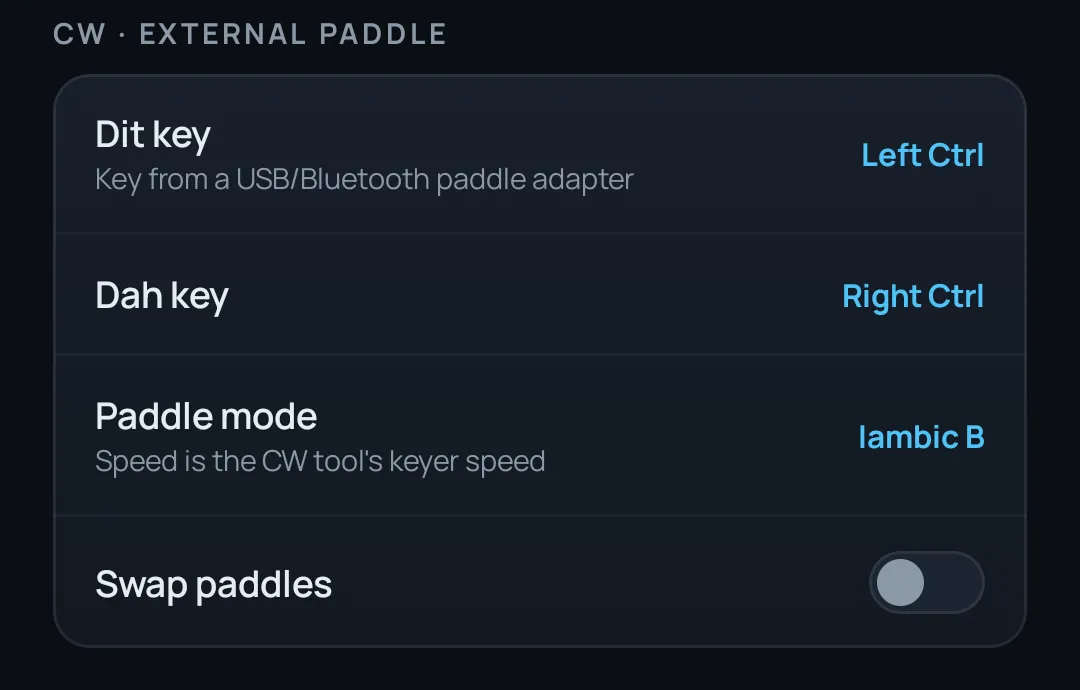
The on-screen paddles are handy, but nothing beats the paddles you already know. SmartSDR AF now keys CW from your own paddles or straight key through a keyboard-style paddle adapter plugged into the phone: a Vail adapter, one of the “CW paddle to USB” dongles, or a Bluetooth adapter that shows up as a keyboard.
How it works
These adapters turn each paddle into a key press. Out of the box the app listens for the Vail convention: Left Ctrl is dit and Right Ctrl is dah. Plug the adapter in, put the transmit slice in CW, and squeeze. It works on any screen, so you don’t have to open the CW tool first.
The first time a new adapter sends a key, a short banner at the top of the screen tells you which device the app is listening to.

Settings
Everything lives in Settings › CW · External paddle:
- Dit key and Dah key: tap one, then press the paddle. Back cancels. Use this if your adapter sends different keys.
- Paddle mode: Iambic B, Iambic A, or Straight key. Straight key keys with your own timing and uses the dit key only.
- Swap paddles for left-handed operators.
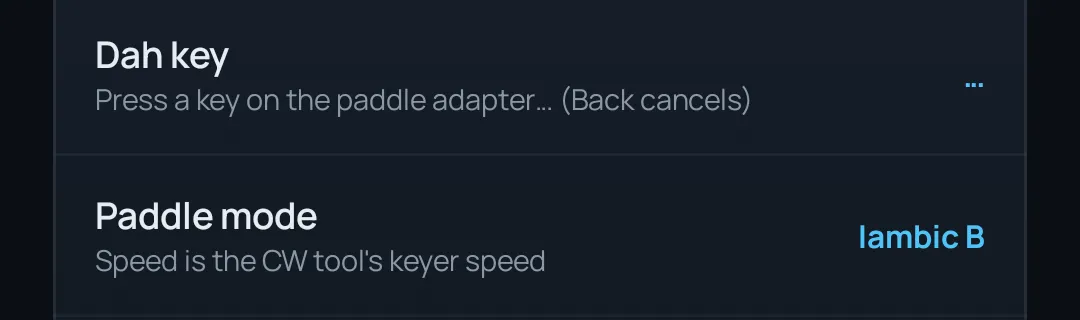
Speed is the keyer speed you already set in the CW tool. The on-screen paddles and your adapter now share one keyer, so they can’t key over each other.
Safety first
- The paddle only keys when the transmit slice is in CW. In any other mode the keys are ignored and nothing is sent to the radio.
- Letting go of a paddle always unkeys, and if the app loses focus or the slice leaves CW, a held paddle is released.
- While a dialog or bottom sheet is open, the paddle doesn’t key until you close it.
Try it
We tested the keying on our radio simulator. We haven’t yet run it with a real adapter on a real radio, so tell us how it behaves with yours, especially break-in timing and Iambic squeezes.
It’s in the latest SmartSDR AF test build now and reaches everyone with the next Google Play update. Feedback is welcome on our Discord.