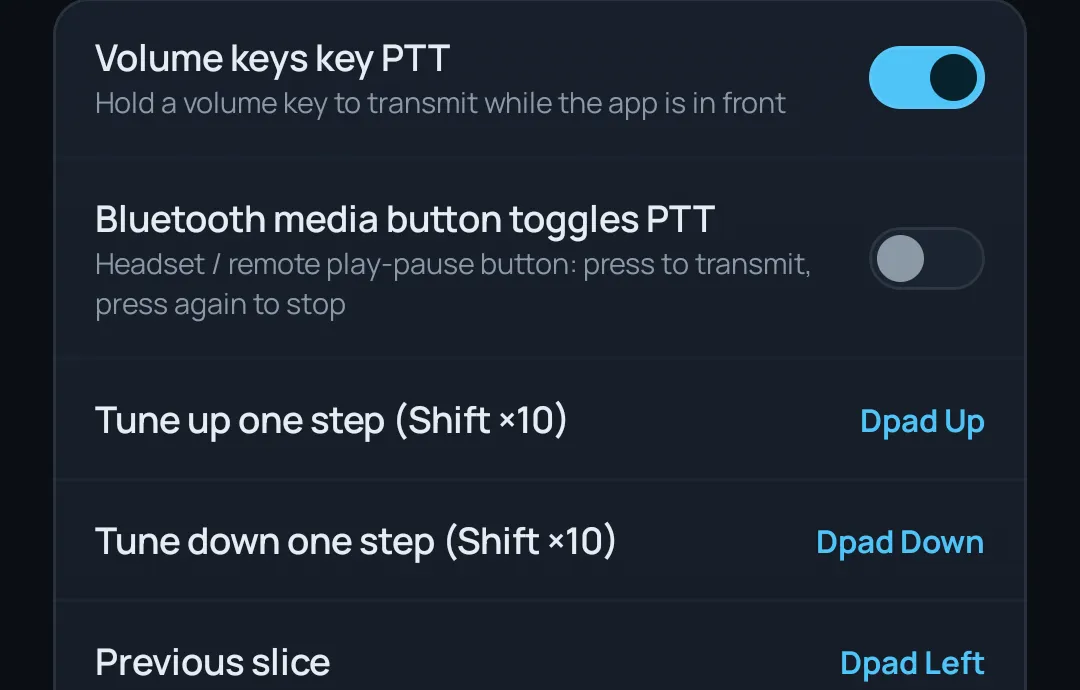
With a Bluetooth or tablet keyboard you can now run the radio without touching the screen. The shortcuts work on every screen.
The keys
- ↑ / ↓: tune the active slice one step (hold Shift for ten steps; holding a key repeats)
- ← / →: previous and next slice
- PgUp / PgDn: next and previous band
- M: next mode
- F1–F8: your CWX macros in CW, your voice macros in voice modes
- Esc: stop a macro
- PTT: not bound until you choose a key; it then works as hold-to-talk
Every key can be changed in Settings › Keyboard & buttons: tap a row and press the key you want. Reset keys to defaults puts the list above back. Keys you type into a text field go to the field, not the shortcuts.
Volume keys and Bluetooth buttons
Two options in the same place, both off until you turn them on:
- Volume keys key PTT: hold a volume key to transmit while the app is in front.
- Bluetooth media button toggles PTT: press the play or pause button on a headset or remote to transmit, press again to stop.
PTT from any key never keys in Demo mode or without a radio connection. Releasing the key, or the app losing focus, always unkeys.
What we tested
We tested the shortcuts with key events on our radio simulator. We haven’t yet tried a real Bluetooth keyboard or headset button with a real radio, so tell us how yours behaves.
It’s coming in the next SmartSDR AF test build and reaches everyone with a later Google Play update. Feedback is welcome on our Discord.