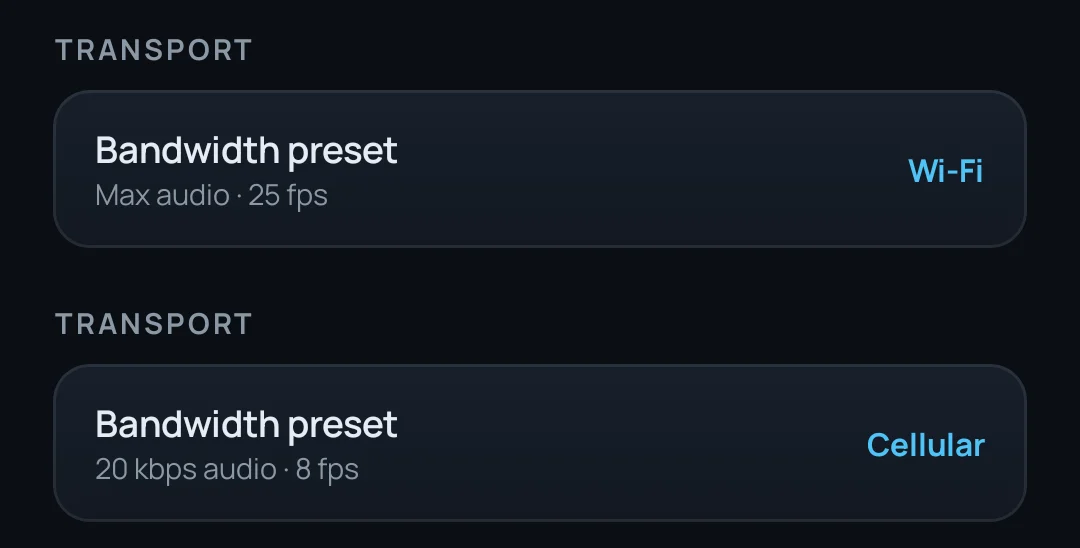
When you run the radio from the couch over Wi-Fi, bandwidth is free. When you run it from the car or a hotel over SmartLink and a cellular link, it isn’t. Two streams dominate the downlink from the radio to your phone: the remote audio and the panadapter’s FFT frames. The Bandwidth preset turns both down together, in one tap, so the radio stays usable when the link is metered or slow.
Where it is
Open Settings › Transport › Bandwidth preset and tap to switch between Wi-Fi and Cellular. The row shows what each one does, and your choice is remembered and re-applied every time you connect.
What each preset does
- Wi-Fi — full quality: the radio’s maximum Opus audio bitrate and a 25 fps panadapter.
- Cellular — the audio drops to 20 kbps Opus and the panadapter to 8 fps. Voice stays clear at that bitrate, and 8 fps is still smooth enough to read the band; together they cut the downlink sharply.
Under the hood it’s two settings sent to the radio: the remote audio bitrate and the panadapter frame rate. Everything else — tuning, slice and DSP control, the waterfall — keeps working exactly as before; it’s just lighter on the wire.
When to reach for Cellular
Switch to Cellular on mobile data, on a weak or congested LTE signal, or over a VPN or tethered link where throughput is limited or the data is metered. Back on Wi-Fi at home, switch to Wi-Fi for the full-rate display and best audio.
The Bandwidth preset is in SmartSDR AF today. Tell us how it holds up on your connection on our Discord.