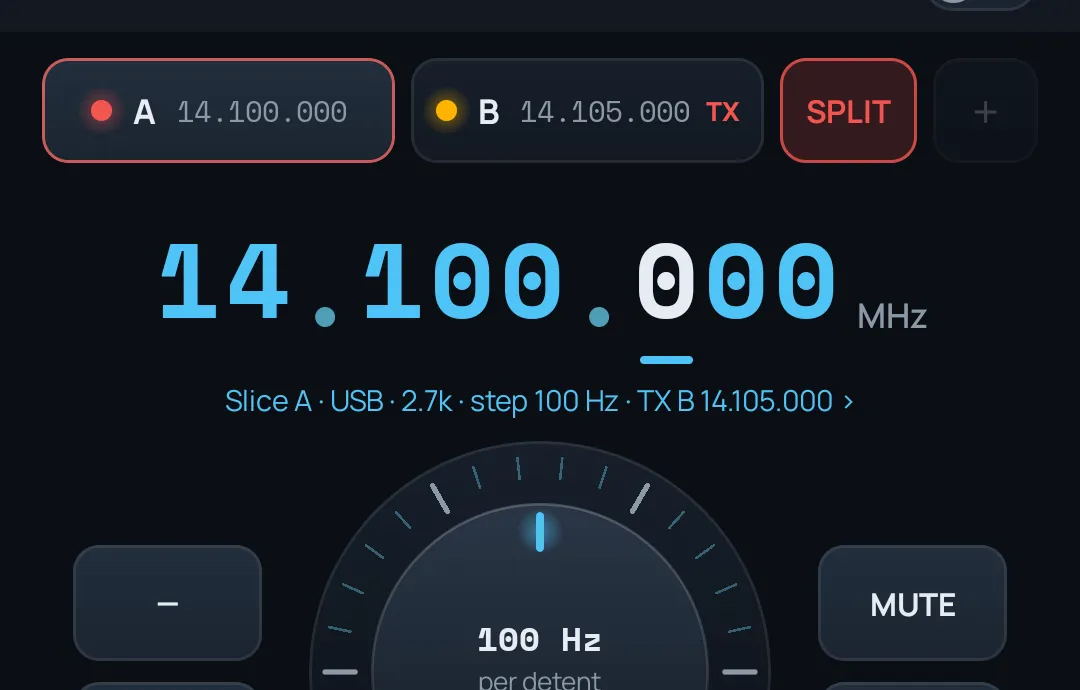
When a DX station says “up 5”, you shouldn’t have to build a second slice by hand. SmartSDR AF now has a SPLIT button next to the slice tabs on the Radio screen.
What it does
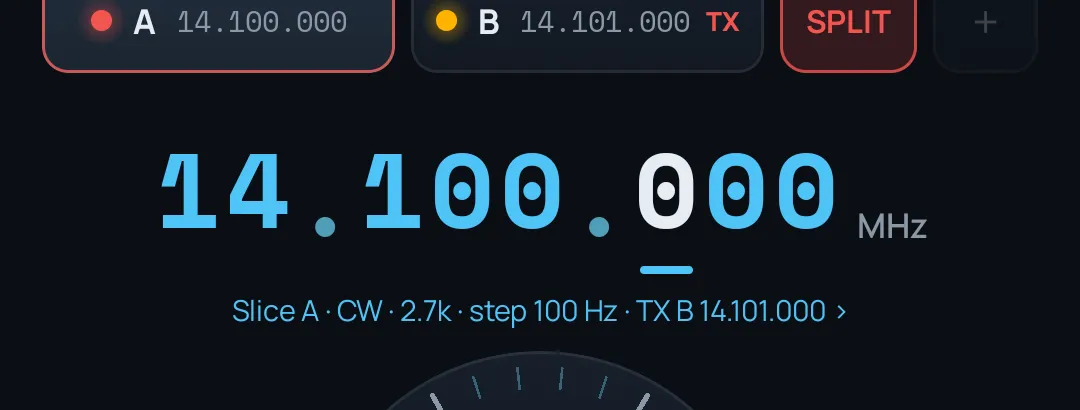
- Tap SPLIT: the app opens a second slice on the same panadapter, 1 kHz up in CW and digital modes or 5 kHz up in voice, with the same mode and filter. It makes that slice the transmit slice and keeps your own slice active for listening.
- The transmit slice’s tab shows a red TX badge, and the line under the frequency ends with where you’ll transmit, for example “TX B 14.105.000”.
- Tap SPLIT again to close the split slice and move transmit back to your listening slice.
When things change elsewhere
If the split slice is closed some other way (from its slice panel, or by another client on the radio), SPLIT turns off and transmit goes back to your listening slice. If every slice on your radio is already in use, SPLIT is dimmed and tells you why instead of doing nothing. In Demo mode it’s dimmed too, since Demo can’t transmit.
What we tested
We tested split on our radio simulator in voice and CW, including closing the split slice from its panel. We haven’t yet keyed a real radio while split, so tell us how it behaves on yours.
It’s coming in the next SmartSDR AF test build and reaches everyone with a later Google Play update. Feedback is welcome on our Discord.